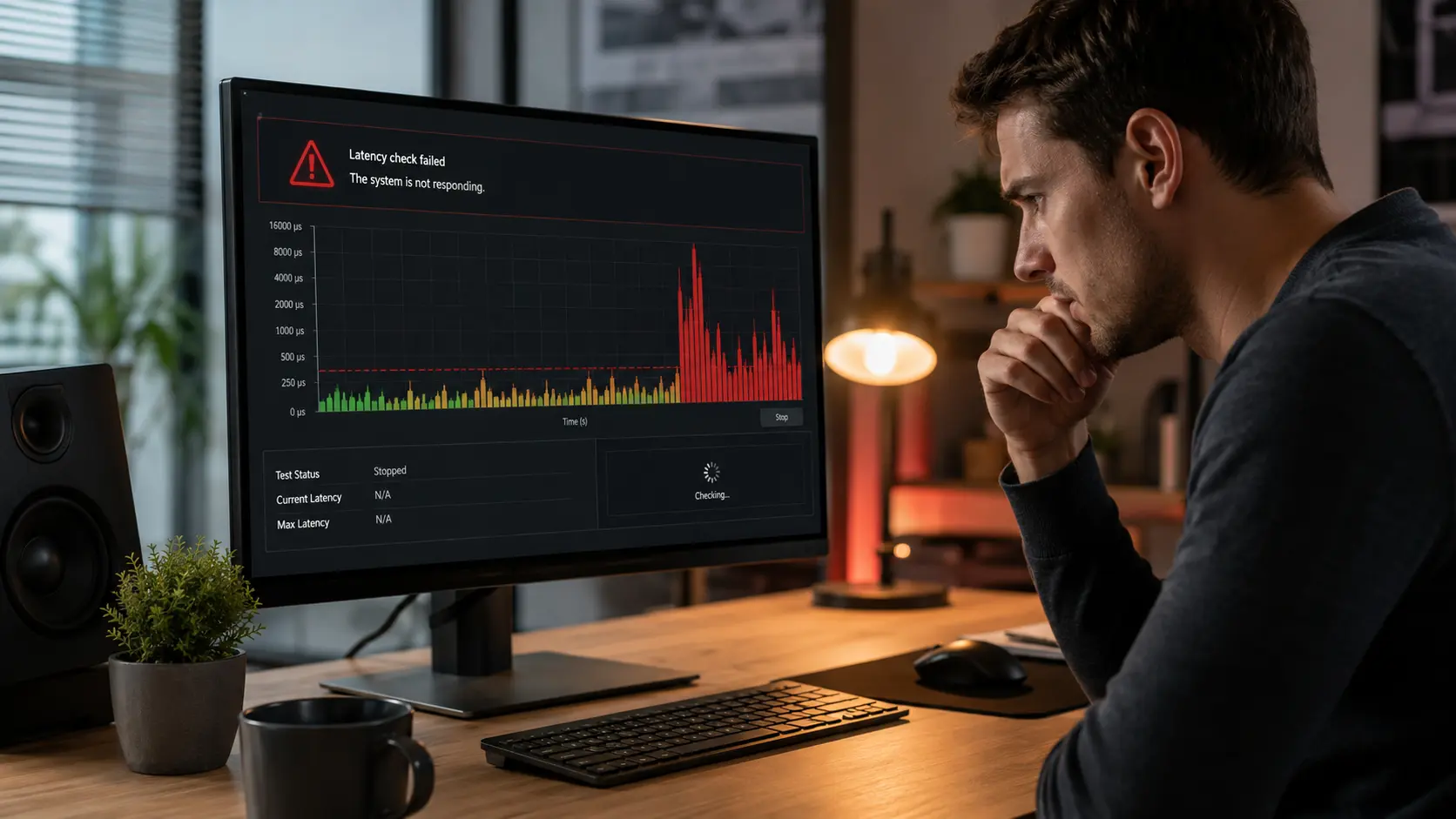
A latency checker that won't launch, freezes mid-scan, or reports clearly wrong numbers is frustrating precisely because you need it working to diagnose a different problem. Here's how to get it back to a clean, working state.
The most common reasons it fails to launch
A blocked kernel driver registration (often from antivirus real-time protection), a corrupted installation from an interrupted update, or a conflict with another monitoring tool trying to hook the same low-level timing data are the usual culprits.
A clean reinstall, done properly
Uninstall fully, restart, temporarily pause real-time antivirus scanning, then reinstall fresh rather than installing over the old version. This clears out any partially-registered driver hooks left behind by a failed previous install.
If the numbers look wrong rather than the app crashing
Close other monitoring or overlay software before scanning — two tools trying to read the same kernel timers simultaneously can produce inflated or inconsistent readings that look like a bug but aren't.